Tools Roundup

Best Free Tools for Mobile Testing in 2026

A complete, no-fluff guide to every free mobile testing tool worth using in 2026 — device simulators, responsive checkers, speed analyzers, accessibility auditors, and cross-browser testing platforms, all compared and ranked.

16 min read
April 3, 2026
Tools, Testing, Free
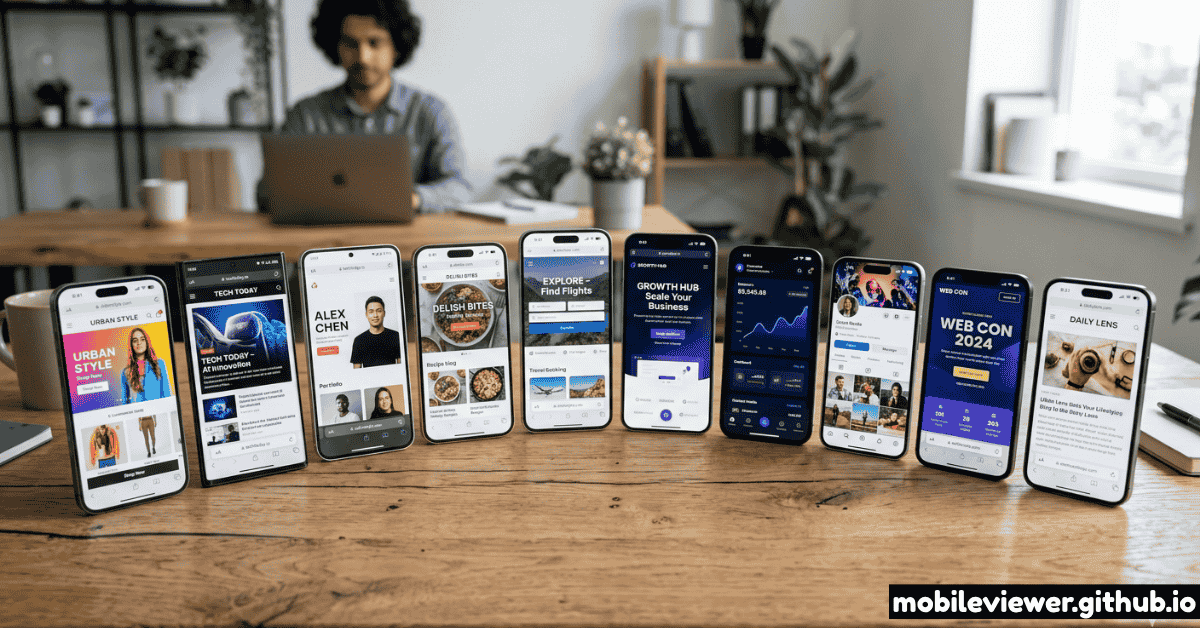
Collection of modern smartphones showing different website layouts
Testing your mobile experience across multiple device viewports in 2026.

The mobile web testing ecosystem is full of paid tools promising enterprise-grade cross-browser testing for $299/month. But for the vast majority of developers, designers, and small teams, free tools cover 95% of what you actually need. The challenge is knowing which ones to trust and how to fit them together into a workflow that doesn't waste your time.

This guide covers every category of mobile testing tool worth using in 2026, with honest pros and cons for each. All tools listed here have genuinely free tiers with no credit card required and no misleading "free trial" limitations.

How to Use This Guide

Mobile testing tools fall into five distinct categories. You need tools from all five categories for a complete workflow — no single tool covers everything. Read the category that matters most for your current bottleneck, or scan the full summary table at the end:

  1. Device Simulators & Responsive Checkers — see your site at real device viewports
  2. Browser-Based DevTools — built-in developer tooling for rapid iteration
  3. Performance & Speed Tools — measure and improve load times and Core Web Vitals
  4. Accessibility Auditors — catch mobile accessibility issues before real users do
  5. Cross-Browser & Visual Regression — verify layout consistency across browsers and devices
📱

Category 1 — Device Simulators & Responsive Checkers

These tools let you see your site as it appears on specific devices without owning the hardware. Essential for every stage of development and QA.

1
Mobile Viewer
All-in-one responsive testing platform — free, browser-based
100% Free No Account
Mobile Viewer is the most complete free tool for device simulation and responsive testing. It renders your site at exact CSS viewport dimensions — not a scaled-down version — for 20+ device presets including iPhone 15, Galaxy S23, iPad Pro, and custom sizes. The QR Code Generator enables one-scan real-device handoff. The Multi-Device Preview Grid shows mobile, tablet, and desktop simultaneously. The Breakpoint Tester and Page Speed integration round out a tool that handles most of your testing workflow in one place.
Pros
  • 20+ device presets with accurate CSS viewports
  • Built-in QR code generator for real-device handoff
  • Multi-device preview grid in one view
  • Breakpoint tester and page speed integration
  • No account, no download, works in any browser
Cons
  • Sites with X-Frame-Options headers won't load in iframe
  • Cannot replicate real browser engine rendering (WebKit vs Blink)
  • No JavaScript console or element inspector built in
Best for: Visual layout testing at device viewports, client previews, responsive design audits, QR-based real-device handoff
Open Mobile Viewer →
2
Chrome DevTools Device Mode
Built into Chrome — F12 → device toolbar icon
Built-inFree
The most used mobile testing tool in the world, and for good reason. Chrome DevTools Device Mode gives you instant device emulation at any viewport size, DPR simulation, network throttling, and access to the full inspector, console, and network panel — all in one window. Best for rapid CSS iteration during development; less useful for realistic rendering validation.
Pros
  • Instant — no page load or URL entry required
  • Full DevTools: inspector, console, network, performance
  • Network throttling (Fast 3G, Slow 3G, offline)
  • CPU throttling for mobile performance simulation
Cons
  • Uses your desktop GPU and browser engine — not a real iOS/Android render
  • Cannot test WebKit-specific CSS behavior on Windows
  • No simultaneous multi-device view
Best for: Day-to-day development, debugging CSS layouts, JavaScript profiling, network analysis
3
Xcode iPhone Simulator (macOS)
Apple's official iOS simulator — real WebKit engine
FreemacOS Only
The only free tool that runs the actual WebKit browser engine used in iOS Safari. Requires macOS and an Xcode installation (large download ~8GB) but provides the most accurate simulation of iOS rendering available without a physical device. Essential for catching iOS-specific CSS bugs before launch.
Pros
  • Real WebKit engine — catches iOS-specific bugs
  • Full range of iPhone and iPad models available
  • Touch simulation and gesture support
  • Web Inspector integration via Safari DevTools
Cons
  • macOS only — unavailable to Windows/Linux developers
  • ~8GB Xcode download required
  • Slow startup time compared to browser tools
Best for: iOS-specific CSS debugging, WebKit rendering validation, pre-launch iOS QA on macOS

Category 2 — Performance & Core Web Vitals Tools

Slow mobile pages are the most common reason users leave before converting. These tools diagnose exactly what's slow and how to fix it.

1
PageSpeed Insights
Google's official Core Web Vitals tester — field + lab data
FreeGoogle Official
PageSpeed Insights is the authoritative tool for measuring your site's Core Web Vitals (LCP, INP, CLS) against Google's thresholds. It combines real-world field data from the Chrome User Experience Report with Lighthouse lab analysis. It identifies your specific LCP element, flags layout shift sources, and gives prioritized recommendations. Run it on mobile mode on your 3–5 highest-traffic pages monthly.
Pros
  • Field data from real Chrome users (CrUX)
  • Identifies specific LCP element and CLS sources
  • Prioritized, actionable recommendations
  • Separate mobile and desktop scores
Cons
  • Field data only available for high-traffic pages
  • Lab data uses simulated Moto G4 device — may not match your users' hardware
  • Only tests one URL at a time
Best for: Core Web Vitals auditing, LCP/CLS debugging, SEO performance validation, pre-launch speed checks
Open PageSpeed Insights ↗
2
Google Search Console — Core Web Vitals Report
Real user CWV data aggregated across all pages
FreeRequires Verification
While PageSpeed Insights shows lab data for individual URLs, Search Console's Core Web Vitals report shows aggregated real-user data across your entire site, organized by page group and segmented by mobile vs. desktop. It surfaces which page templates have the most CWV failures — letting you prioritize fixes where they affect the most real users, not just the pages you remember to test manually.
Pros
  • Real user data, not synthetic tests
  • Site-wide view of CWV failures by page group
  • Mobile vs. desktop segmentation
  • Also includes Mobile Usability report
Cons
  • Requires site ownership verification
  • 28-day data lag — not useful for real-time debugging
  • Only shows data for pages with enough traffic
Best for: Site-wide CWV monitoring, identifying which page templates need optimization, monthly performance reviews
3
WebPageTest
Advanced performance testing from real global locations
Free
WebPageTest offers a level of performance analysis detail that PageSpeed Insights doesn't reach. You can test from dozens of global locations on real device connections, view waterfall charts, identify third-party scripts dragging down your load time, and run filmstrip visualizations that show frame-by-frame how your page loads on mobile. The free tier is generous and sufficient for most auditing needs.
Pros
  • Test from real locations worldwide
  • Detailed waterfall and filmstrip views
  • Third-party impact analysis
  • Repeat view caching analysis
Cons
  • Slower — tests take 1–2 minutes to run
  • Interface has a steep learning curve
  • Free tests are queued behind paid users during peak times
Best for: Deep performance investigations, third-party script audits, global latency analysis
Open WebPageTest ↗

Category 3 — Mobile Accessibility Tools

Accessibility issues on mobile are often more severe than on desktop — tiny tap targets, low contrast on OLED screens, missing ARIA labels for screen readers. These free tools surface the most common violations.

1
Lighthouse (Chrome DevTools)
Google's automated audit tool — accessibility, performance, SEO, PWA
Built-in ChromeFree
Lighthouse runs automated audits across accessibility, performance, SEO, and progressive web app criteria — all from within Chrome DevTools. The accessibility audit covers 70+ checks including contrast ratios, ARIA usage, tab order, keyboard navigation, and mobile-specific concerns like tap target size. Run in "Mobile" mode to get the mobile-specific performance score that Google uses in its rankings.
Pros
  • Covers accessibility, performance, SEO, and PWA in one run
  • 70+ accessibility checks with clear fix guidance
  • Mobile mode produces the score Google sees
  • Can be run via CLI for CI/CD integration
Cons
  • Lab data only — not real user measurements
  • Automated accessibility checks catch ~30% of real issues
  • Does not test complex interactions (login flows, carousels)
Best for: Regular accessibility baseline checks, SEO auditing, performance scoring before deployments
2
axe DevTools (Browser Extension)
Industry-standard accessibility testing extension
Free CorePaid Pro
axe DevTools is the browser extension used by accessibility professionals worldwide. The free core version integrates with Chrome and Firefox DevTools, runs WCAG 2.1 AA checks on the page, and highlights every violation with a clear explanation and a link to the specific guideline. Particularly useful for mobile because it catches tap target size violations, missing touch action labels, and focus management issues.
Pros
  • Zero false positives — flags only confirmed violations
  • WCAG 2.1 AA coverage
  • Guided fixes with rule links
  • Works on live pages including authenticated pages
Cons
  • Needs to be run at each mobile breakpoint manually
  • Advanced features (auto-testing, CI, component scanning) require paid license
Best for: WCAG compliance auditing, pre-launch accessibility review, developer accessibility education
🌐

Category 4 — Cross-Browser & Visual Regression

Browser engine differences (especially WebKit vs. Blink) cause real visual discrepancies. These tools help catch inconsistencies before real users report them.

1
Playwright
Microsoft's browser automation framework — free, open source
Free / Open Source
Playwright is Microsoft's open-source browser automation library. For mobile testing, it provides device emulation for iPhone 15, Galaxy S23, iPad, and other devices — running tests against Chromium, WebKit, and Firefox from the same test suite. It's the best free option for automated cross-browser visual regression testing, especially when combined with its built-in screenshot comparison API.
Pros
  • Tests against Chromium, WebKit, and Firefox
  • Built-in device emulation with 20+ mobile presets
  • Screenshot diff and visual regression testing
  • Fully free and open-source
Cons
  • Requires developer setup — not a click-and-use tool
  • WebKit engine in Playwright is not identical to iOS Safari
  • Setup time investment is significant for small projects
Best for: Automated regression testing, CI/CD integration, teams that deploy frequently
playwright.dev ↗
2
BrowserStack (Free Tier)
Real device cloud testing — limited free access
Free TrialPaid
BrowserStack gives you access to real iOS and Android devices in the cloud — not emulators. The free tier is limited (100 minutes/month Automate, 1 parallel session) but it's the most realistic cross-browser testing available without physical hardware. Particularly valuable for testing iOS Safari behavior that desktop browser tools can't accurately replicate.
Pros
  • Real physical devices — most accurate available
  • Hundreds of iOS and Android device/OS combos
  • Live interactive testing (free tier)
  • Screenshot and video recording
Cons
  • Free tier is very limited — 30 min live testing, 100 min Automate
  • Paid plans are expensive for solo developers
  • Session latency can be noticeable
Best for: Occasional pre-launch real-device checks when physical devices aren't available

Quick Reference Summary

Tool Category Free? Real Device Best Use
Mobile ViewerSimulatorYes, fullyVia QRVisual layout, device preview
Chrome DevToolsSimulator / DebugYes, built-inNo (emulated)Development iteration
Xcode SimulatorSimulatorFree, macOS onlyWebKit onlyiOS-specific bugs
PageSpeed InsightsPerformanceYes, fullyNoCore Web Vitals
Google Search ConsolePerformance / SEOYes, freeCrUX field dataSite-wide CWV
WebPageTestPerformanceYes, free tierReal locationsDeep perf analysis
LighthouseAccessibility / PerfYes, built-inNoAccessibility baseline
axe DevToolsAccessibilityFree coreNoWCAG auditing
PlaywrightAutomationYes, open-sourceNo (emulated)Automated regression
BrowserStackCross-browserLimited free tierYes — real devicesPre-launch real-device QA
💡 Recommended Stack for Solo Developers

If you're building and testing alone, this stack covers 95% of needs for free: Mobile Viewer for visual responsive testing + QR handoff → Chrome DevTools for debugging → PageSpeed Insights for performance → Lighthouse for accessibility → Playwright if you want automated regression. The only thing you're missing is real iOS/Android engine testing, which you can cover on pre-launch days with BrowserStack's free trial minutes.

Putting It Together: Recommended Testing Workflow

The best stack in the world is worthless without a consistent workflow. Here's how to combine these tools in practice:

  1. During development (daily): Chrome DevTools Device Mode for rapid CSS iteration. Switch between 360px and 390px viewports to catch layout breaks early.
  2. Before each PR/commit: Open Mobile Viewer and check your changed pages at iPhone 15 + Galaxy S23 viewports. Run Lighthouse on any modified pages for performance and accessibility regressions.
  3. Pre-launch (day before): Run PageSpeed Insights on your 5 most important pages. Fix any LCP above 2.5s or CLS above 0.1. Use Mobile Viewer's QR code to scan on at least one real iOS and one real Android device.
  4. Post-launch (monthly): Check Google Search Console Core Web Vitals report for field data regressions. Run a full Lighthouse audit on the homepage and 2–3 key landing pages.

For a deeper dive into the testing workflow specifically, see our guide on how to test responsive design without buying 20 phones.

FAQ

Mobile Testing Tools FAQ

Common questions about free mobile testing tools in 2026

Mobile Viewer is the most comprehensive free tool for responsive testing — it includes a device simulator with 20+ presets, a responsive checker, multi-device preview grid, QR code generator, and page speed integration, all without creating an account. For built-in browser testing during development, Chrome DevTools Device Mode is the best free option for rapid iteration.

Yes. For visual responsive testing, Mobile Viewer is fully free with no limits. Chrome DevTools, Firefox Responsive Design Mode, and Safari + Xcode Simulator all provide free device emulation covering all major viewport sizes. For automated visual regression testing, Playwright is fully free and open-source. BrowserStack remains the best option for testing on actual real hardware, but their free tier is limited — you'll want to use it strategically for pre-launch checks rather than daily testing.

The fastest method is to use Mobile Viewer's QR Code Generator — paste your URL, generate a QR code, and scan it with your phone. This opens the live site in your phone's actual browser engine (Safari on iOS, Chrome on Android) with zero setup and no cost. For local development servers, use your machine's local IP address instead of localhost so the phone can reach it over Wi-Fi.

Accurately, no. iOS Safari uses Apple's WebKit engine, and the only free way to run WebKit is via Xcode's iPhone Simulator on macOS. Windows and Linux users without a Mac or iPhone must use BrowserStack's paid real-device cloud. Chrome DevTools and Mobile Viewer use the Blink engine on desktop and cannot fully replicate WebKit rendering quirks. For teams on Windows/Linux, BrowserStack's free trial minutes are valuable specifically for iOS WebKit validation.

You need tools from multiple categories because each covers a different type of failure. Mobile Viewer and Chrome DevTools handle layout and visual testing. PageSpeed Insights handles performance. Lighthouse handles accessibility. No single tool catches everything. That said, if you're just starting out, Mobile Viewer + Chrome DevTools + PageSpeed Insights will catch the vast majority of issues affecting most sites. Add the accessibility and automation tools as your workflow matures.

Ranked #1 Free Mobile Testing Tool

Start testing with Mobile Viewer — free, right now

Device simulator, QR code generator, multi-device preview, breakpoint tester, and page speed — all free, all in one place