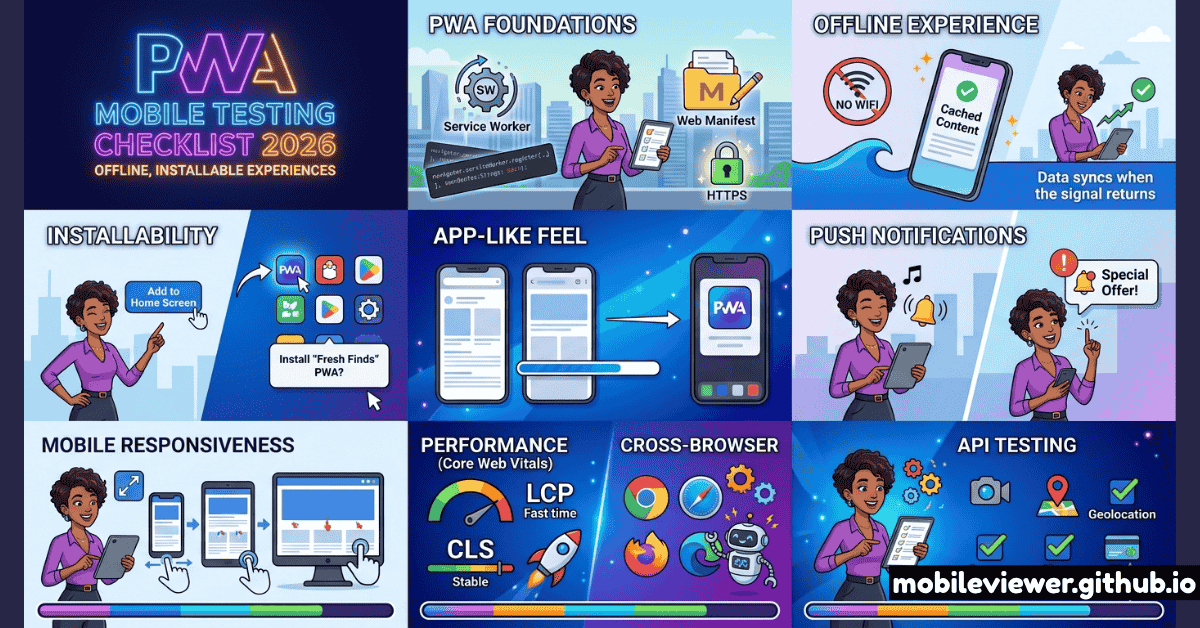
In 2026, PWAs are no longer a niche strategy. Major e-commerce platforms, SaaS products, and media sites have adopted the PWA model — and with that adoption comes a more complex testing surface than a traditional responsive website. An app that must function offline, be installable, receive push notifications, and update silently in the background has failure modes that simply don't exist in a standard web page.
This checklist covers every testable dimension of a modern PWA on mobile, organized by category, with specific testing steps for each item.
Work through each category top-to-bottom. Use Chrome DevTools (Application panel) for service worker and manifest testing. Use a real Android device for install prompt and standalone-mode testing. Use a real iOS device for Safari-specific standalone behavior — do not assume iOS behaves the same as Android Chrome.
1. Installability Requirements
Before your PWA can be installed, it must satisfy a specific set of criteria. These vary between browsers and platforms, and failure on any one point silently prevents the install prompt from appearing.
Valid Web App Manifest
Your manifest must include: name, short_name, start_url, display set to standalone or fullscreen, background_color, theme_color, and at least one icon at 512×512px. Verify in Chrome DevTools > Application > Manifest — any red validation errors prevent installation. Also check that start_url is relative to the manifest's location, not an absolute URL on a different origin.
Registered Service Worker with Fetch Handler
A service worker must be registered and must include a fetch event listener. Chrome requires this specifically to show the install prompt. Verify in DevTools > Application > Service Workers that your SW shows "activated and is running." Also check the scope — if your SW is registered at /app/sw.js with no explicit scope, it only controls pages under /app/. Use navigator.serviceWorker.register('/sw.js', { scope: '/' }) to control the root.
HTTPS Required
Service workers require a secure context. There are no exceptions in production — not even for IP addresses. The only exception is localhost for local development. Check your SSL certificate expiry, ensure all subresources are served over HTTPS (mixed content blocks service worker registration), and verify your certificate covers all subdomains used by the PWA.
Maskable Icons
Android adaptive icons crop your PWA icon into different shapes (circle, rounded square, squircle) depending on the device manufacturer's launcher. Without a maskable icon, your logo gets letterboxed in a white circle. Add "purpose": "maskable" to your largest icon entry in the manifest and ensure the key content is within the "safe zone" — the center 80% of the icon area. Use maskable.app to preview how your icon will be cropped.
2. Service Worker & Caching Strategy
Your service worker's caching strategy determines what users see when they're offline, how updates are delivered, and how much storage your app uses on the device. Each strategy has different testing requirements.
App Shell Loads Offline
The app shell — your navigation, layout chrome, and loading skeleton — must load and render without a network connection. Test this by: (1) loading the page normally, (2) going to DevTools > Application > Service Workers and checking "Offline," (3) reloading the page. You should see your app shell, not a browser "No internet" dinosaur page. If you see the dinosaur, your shell assets aren't in the cache or your SW fetch handler is missing a cache-first strategy for shell resources.
Offline Fallback Page
When users navigate to a page that isn't cached while offline, they must see a branded offline page — not a browser error. Pre-cache an offline.html file during the service worker install event and serve it as a fallback for navigation requests that fail. Test by: loading a page, going offline, then navigating to a URL you haven't visited. The SW should intercept the failed fetch and return your offline fallback.
Cache Size Management
Uncapped caches grow indefinitely and trigger storage pressure warnings on mobile devices with limited storage. Implement cache expiration using a library like Workbox's ExpirationPlugin. Set maximum entries (e.g., 50 images) and maximum age (e.g., 30 days) for runtime caches. Also implement a storage.estimate() check on startup and degrade gracefully if storage quota is nearly exhausted.
Service Worker Update Flow
By default, users won't see PWA updates until they close all tabs. Most apps need to notify users and prompt a reload. Test the update flow by: deploying a SW change, opening the app, verifying the "Update available" notification appears (if you've implemented one), and confirming the new version loads after reload. Use skipWaiting() + clients.claim() carefully — they can cause issues if the new SW has different cache structure expectations.
3. Standalone Mode & Mobile UI
When installed, a PWA runs in standalone mode — without the browser's address bar, navigation buttons, or tab bar. This changes the available screen space and requires specific UI handling.
Safe Area Inset Handling (Notch & Dynamic Island)
In standalone mode on iOS, your PWA occupies the full screen including the area behind the Dynamic Island or notch. Without proper handling, UI elements are obscured. Add <meta name="viewport" content="width=device-width, initial-scale=1, viewport-fit=cover"> and use CSS env variables: padding-top: env(safe-area-inset-top), padding-bottom: env(safe-area-inset-bottom) on your fixed headers and bottom navigation. Check this on a real iPhone — Mobile Viewer's iPhone presets give you a starting point for visual layout checks.
Back Navigation in Standalone Mode
On iOS, installed PWAs have no browser back button. Your UI must provide in-app navigation controls for every view. Test by installing your PWA and navigating 3–4 levels deep — can the user get back without hardware gestures? On Android, the system back button works but can cause unexpected behavior if your app uses custom routing. Test that the back button navigates within the app rather than exiting it.
Status Bar Appearance (iOS)
Control the iOS status bar color and style using <meta name="apple-mobile-web-app-status-bar-style">. Options: default (white bar, black text), black (black bar), or black-translucent (content extends under the status bar — requires safe area handling). Test on both light and dark system themes. Remember that theme_color in the manifest affects Android's status bar color but not iOS.
4. iOS vs Android PWA Capability Differences
iOS and Android have significantly different PWA capability sets. Never assume Android behavior applies to iOS. Key differences developers must test explicitly:
| Capability | Android (Chrome) | iOS (Safari) |
|---|---|---|
| Install Prompt | Automatic (beforeinstallprompt) | Manual (Add to Home Screen) |
| Push Notifications | Full support | iOS 16.4+ only, must be installed |
| Background Sync | Supported | Not supported |
| Badging API | Supported | iOS 16.4+ only |
| File System Access | Supported | Limited |
| Persistent Storage | requestPersistent() | 7-day limit without persistent grant |
| Share Target | Supported | Not supported |
iOS evicts PWA storage (including service worker caches and IndexedDB) after approximately 7 days of inactivity unless the user grants persistent storage. This means offline content may disappear for users who haven't opened your PWA in a week. Always test iOS offline behavior after simulating inactivity, not just immediately after installation.
5. PWA Performance on Mobile
A PWA's performance characteristics on mobile differ from a regular website because service worker startup time adds latency on cold starts, and the cached resource strategy affects repeat-visit performance. For the complete performance testing workflow, see our Mobile Core Web Vitals guide.
First Load vs Repeat Load Performance
PWAs should be significantly faster on repeat loads thanks to caching. Measure LCP separately for first load (cold cache) and repeat load (warm cache) using PageSpeed Insights. A repeat load LCP should typically be under 1 second if your app shell is cached. If repeat load performance is similar to first load, your caching strategy isn't working correctly — the service worker isn't intercepting navigation requests.
Lighthouse PWA Audit
Run a Lighthouse audit (DevTools > Lighthouse > Mobile > PWA category) on every major release. The audit checks 13 PWA requirements covering installability, offline behavior, and best practices. Aim for all checks passing in the "Installable" and "PWA Optimized" categories. Note: Lighthouse's PWA audit doesn't test iOS-specific behaviors — you must test those manually on a real device.
Push Notification Delivery and Display
Test the full push notification flow: permission request UX, notification display when app is backgrounded, and tap-to-open behavior. On Android, test that notification icons use your maskable icon and display correctly. On iOS (16.4+), test that push notifications only appear when the PWA is installed — they don't work in the browser tab. Also verify that notification permission prompts are contextually triggered (e.g., after a user action) rather than on page load, which increases denial rates.
Responsive Layout in Standalone Mode
Test your PWA's responsive layout specifically in standalone mode — the available viewport height changes because the browser chrome disappears. On Android, the bottom navigation bar's height also affects the available viewport. Use Mobile Viewer to preview your layout at the exact viewport dimensions of installed mode, and verify that your CSS Grid or Flexbox layouts adapt correctly to the taller available space.
PWA testing is fundamentally different from website testing because it involves multiple runtime layers — the browser, the service worker, the cache, the OS install mechanism, and the device's own notification system. Each of these can behave differently across operating systems, browser versions, and even device manufacturers. For a complete picture of how device differences affect your responsive layouts, see our guide on how 2026 flagship phones affect responsive design.
Run this checklist before every major PWA release and after every significant service worker change. The most common source of PWA regressions is a service worker update that breaks offline behavior without the developer noticing — because it works fine in the browser with DevTools open, but fails on a real device with a real cached state from a previous version.